What Is a Motherboard Chipset? Functions, ID & Types Explained
If you’ve ever cracked open a PC case and wondered what that cluster of chips near the CPU actually does, you’re not alone. The motherboard chipset sits in a strange middle ground—it’s not the processor, but without it, your CPU can’t talk to RAM, storage, or anything else. This guide cuts through the confusion with a practical breakdown of what a chipset is, how it differs from a CPU, and exactly how to identify yours.
Primary Role: Manages data flow between CPU, RAM, storage, peripherals · Location: Integrated on motherboard near CPU socket · Key Manufacturers: Intel, AMD · Common Features Controlled: USB ports, PCIe lanes, SATA
Quick snapshot
- Chipset and CPU are not the same thing (AMD)
- Chipset determines CPU support, RAM speeds, and expansion capabilities (Overclockers UK compatibility guide)
- Location on motherboard is near the CPU socket (AMD)
- Whether mid-range chipsets like Intel B-series will add features previously exclusive to Z-series
- Exact feature differentiation between AMD’s upcoming chipsets
- Intel LGA 1851 introduced in 2025 for Core Ultra 200S series (Overclockers UK compatibility guide)
- AMD AM4 socket has spanned Ryzen 3000 through 5000 series since 2017 (Overclockers UK compatibility guide)
- Intel’s shift toward more integrated designs may reduce standalone chipset importance
- PCIe 5.0 allocation increasingly handled directly by CPUs rather than chipsets
| Attribute | Detail |
|---|---|
| Definition | Set of ICs managing motherboard data flow between CPU and peripherals |
| Historical Components | Northbridge (high-speed), Southbridge (low-speed) |
| Modern Design | Often single integrated die consolidating former Northbridge/Southbridge functions |
| Determines Support For | CPU generations, RAM speeds, PCIe version, USB ports, storage interfaces |
| Key Manufacturers | Intel, AMD (primary consumer market); Nvidia (historically) |
| Location on Board | Near CPU socket, typically below or beside the processor area |
What Is a Chipset?
A chipset is a collection of electronic components on a motherboard that manages the data flow between the processor, memory, and peripheral devices. Think of it as the traffic controller of your PC—everything that moves between your CPU and other hardware passes through the chipset’s logic.
Historically, chipsets split into two parts: the Northbridge handled high-speed connections like CPU-to-RAM and graphics, while the Southbridge managed slower I/O such as USB and storage. Modern designs consolidate these functions into a single die, but the underlying logic remains the same.
According to AMD’s official support documentation, the chipset is visible on product markings—for example, ASUS X570 boards or MSI X470 boards carry their chipset designation directly on the board or packaging.
Does Chipset Mean Motherboard?
No, the chipset and motherboard are not the same thing. The motherboard is the entire printed circuit board; the chipset is a specific component—or collection of components—mounted on that board. A motherboard hosts the chipset, CPU socket, RAM slots, and expansion slots, but the chipset handles the communication rules between these elements.
When shopping for a motherboard, the chipset name tells you which CPU generations it supports and what features are available—but the board’s physical quality, VRMs, and layout are separate considerations entirely.
Are Chipset and CPU the Same Thing?
No, and confusing the two is one of the most common mistakes in PC building. The CPU executes instructions—it’s the brain that processes data. The chipset manages input/output operations, controlling how data moves between the CPU, memory, storage, and peripherals.
AMD’s technical documentation describes the chipset as managing data flow, while the CPU handles computation. These are fundamentally different roles.
In practical terms, the Overclockers UK compatibility guide explains that while the CPU determines raw processing power, the chipset determines which features and connectivity options your system can use. A high-end CPU paired with a budget chipset will have limitations on RAM speed, PCIe lanes, and USB configuration.
CPU vs Chipset: Key Differences
Three practical differences matter most for PC builders:
- Function: CPU runs programs; chipset routes data between components
- Interchangeability: CPU and chipset are not interchangeable—one doesn’t substitute for the other
- Upgrade path: Changing your CPU often requires chipset compatibility; changing your chipset requires a new motherboard entirely
How Do I Find the Chipset of My Motherboard?
Finding your chipset is straightforward using built-in tools or physical inspection. Here are three reliable methods:
Using Device Manager (Windows)
- Right-click the Start menu and select Device Manager
- Expand the “System devices” section
- Look for an entry labeled with your chipset name (e.g., “Intel Q670” or “AMD X570”)
The Tom’s Hardware community forum notes that Device Manager doesn’t always list the chipset clearly, but it provides a starting point before checking documentation or physical labels.
Using CPU-Z Software
CPU-Z is a free utility that reads your system’s hardware information directly. Download it from CPUID, run it, and check the “Mainboard” tab. The chipset field shows your exact model. According to Tom’s Hardware discussions, CPU-Z reliably identifies chipset information even when Device Manager falls short.
Physical Inspection and Documentation
- Check the motherboard box or manual for the chipset designation
- Look for printed labels on the board itself near the CPU socket
- Visit the manufacturer’s support page and enter your motherboard model number
AMD’s official identification guide recommends checking product markings, as chipset names like X570 or X470 are printed directly on ASUS, ASRock, and MSI boards.
Using BIOS or UEFI
Restart your PC and enter the BIOS/UEFI setup (typically pressing Delete or F2 during boot). The main page usually displays the motherboard model and chipset. This method works regardless of your operating system.
Knowing your chipset is essential before upgrading a CPU—Intel’s official compatibility tool lets you enter your processor model and find which motherboards support it based on socket and chipset combinations.
What Does a Chipset Look Like?
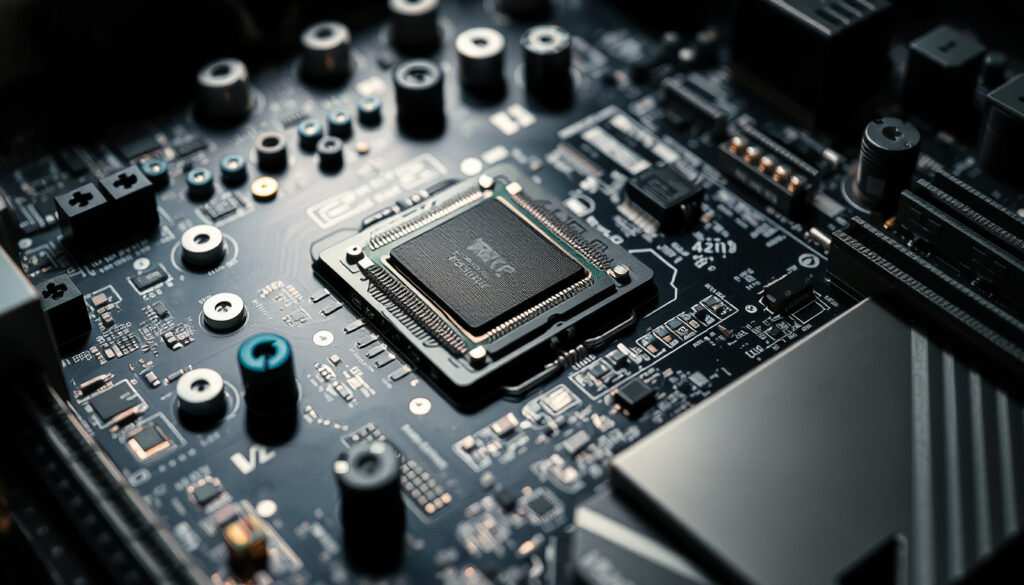
A modern chipset typically appears as a square or rectangular chip approximately 35-50mm per side, covered with a heat spreader or small heatsink. On many motherboards, particularly those designed for gaming or workstation use, you’ll see a passive heatsink mounted directly over the chipset—this helps dissipate heat but also hides the chip itself.
Without the heatsink, the chipset looks like a standard integrated circuit (IC) with many small connection pins around its perimeter. The exact location varies by board design, but it’s consistently near the CPU socket on modern ATX and mATX motherboards.
Historical: Northbridge and Southbridge
Older motherboards (roughly pre-2010) used a two-chipset architecture. The Northbridge connected the CPU to memory and high-speed graphics (PCIe), while the Southbridge handled slower peripherals like USB, SATA, and audio. Intel’s Core 2 processors on socket 775 and i7 7xx chips on socket 1366 relied on this split design.
Modern processors have integrated the Northbridge functions directly, leaving only the Southbridge-equivalent as a standalone chipset. This integration improved latency and reduced board complexity.
Motherboard Chipset Types and Compatibility
Chipset compatibility determines which CPU generations, RAM speeds, and features your system supports. Both Intel and AMD name their chipsets in series that indicate performance tier and feature set.
Intel Chipset Series
Intel organizes consumer chipsets into tiers:
- Z-series (e.g., Z790, Z690): Full features including overclocking support, highest PCIe lane counts
- B-series (e.g., B760, B660): Balanced features without CPU overclocking, suitable for mid-range builds
- H-series (e.g., H770, H670): Entry-level with fewer USB ports and PCIe lanes than B-series
According to the Overclockers UK compatibility guide, Intel’s Core generations 10-14 used sockets LGA 1200, 1700, and 1851 depending on the specific generation and chipset combination.
AMD Chipset Series
- X-series (e.g., X670E, X570): Enthusiast tier with maximum PCIe 5.0 lanes and USB4 support
- B-series (e.g., B650E, B550): Mainstream with solid feature sets, no CPU overclocking on B550
- A-series (e.g., A620): Budget option with essential features only
The Overclockers UK compatibility guide confirms that AMD’s AM4 socket supports Ryzen 3000, 4000, and 5000 series processors. The chipset must match your CPU generation—AMD boards typically require a BIOS update for newer CPU support.
Chipset Compatibility Table
Two platforms, two socket generations—one clear pattern emerges in how Intel and AMD structure their compatibility.
| Platform | Socket | Supported CPU Series | Key Chipsets |
|---|---|---|---|
| Intel (12th-14th Gen) | LGA 1700 | Core i3, i5, i7, i9 (12th-14th gen) | Z790, B760, H770 |
| Intel (Core Ultra 200S) | LGA 1851 | Core Ultra 200S series | Z890, B860, H810 |
| AMD Ryzen 3000-5000 | AM4 | Ryzen 3000, 4000, 5000 | X570, B550, A520 |
| AMD Ryzen 7000 | AM5 | Ryzen 7000 series | X670E, B650E, A620 |
The implication: socket type is the primary physical barrier—your CPU and motherboard must share the same socket. The chipset then determines which specific CPU SKUs within that generation are supported and what features the board can enable.
How Many Chipsets in a Motherboard?
Modern consumer motherboards typically have one primary chipset. However, some high-end workstation boards add secondary chips for additional functionality, such as extra USB controllers or legacy port support. For standard desktop builds, expect one chipset driving all primary connectivity.
Can a Chipset Be Replaced?
Unlike RAM or a graphics card, the chipset is soldered directly to the motherboard. Upgrading it isn’t practical—you’d need to replace the entire motherboard. This is why selecting a board with your desired chipset upfront matters more than with other components.
Motherboards with flagship chipsets like Intel Z-series or AMD X-series command premium prices. If you don’t need overclocking or maximum PCIe lanes, a B-series board delivers 90% of the features at a significantly lower cost—just verify the chipset supports your intended CPU before purchase.
Step-by-Step: How to Identify Your Chipset
Whether you’re upgrading or troubleshooting, here’s a practical workflow:
Step 1: Identify Without Opening the Case
- Run CPU-Z from the CPUID website and note the chipset on the Mainboard tab
- Check your motherboard box or purchase documentation
- Search your motherboard model on the manufacturer’s website
Step 2: Enter BIOS During Boot
- Restart your PC
- Press Delete or F2 repeatedly to enter BIOS/UEFI
- Find the chipset information on the main or system information page
Step 3: Verify Compatibility Before CPU Upgrade
- Visit Intel’s Product Compatibility Tool or AMD’s support pages
- Enter your current motherboard model or desired CPU
- Check if a BIOS update is required for your new CPU
The Gigabyte CPU Support List provides comprehensive compatibility matrices by processor series—search by series (Ryzen 9, Ryzen 7, etc.) to find your board’s supported CPUs.
Key Specifications Comparison
Three tiers of Intel chipsets illustrate how features scale across the lineup.
| Feature | Z790 | B760 | H770 |
|---|---|---|---|
| CPU Overclocking | Yes | No | No |
| RAM Overclocking | Yes | Limited | Limited |
| PCIe 5.0 Slots | 1×16 + 1×4 | 1×16 | 1×16 |
| Max USB 3.2 Gen 2×2 | Up to 4 ports | Up to 2 ports | Up to 2 ports |
| SATA 3.0 Ports | Up to 8 | Up to 4 | Up to 6 |
| Wi-Fi Integration | CNVi + external | External only | External only |
What this means: for a gaming rig where you’ll push memory speeds and need every USB port, Z-series justifies the premium. For a productivity workstation running stock configurations, B-series delivers reliable performance without paying for overclocking headroom you’ll never use.
“In order for a CPU to work with a motherboard, the motherboard needs to have the same socket as the CPU.” — R4GE VipeRzZ, YouTube tutorial
“Your first port of call for ensuring motherboard and CPU compatibility is to match brands.” — Overclockers UK editorial guide
The pattern here is consistent: socket match is non-negotiable, chipset determines feature ceiling, and brand alignment (Intel platform with Intel CPU, AMD platform with AMD CPU) is the starting point.
Related reading: Bambu Lab A1 Specs and Setup Guide · What Is a Data Retention Policy
While the chipset coordinates data between CPU, memory, and peripherals, this chipset functions guidedelves into compatibility details essential for PC builders.
Frequently asked questions
Are chipset and CPU the same thing?
No. The CPU executes instructions and processes data; the chipset manages data flow between the CPU, RAM, storage, and peripherals. They’re fundamentally different components with different functions.
Can a chipset be replaced on a motherboard?
No. The chipset is soldered to the motherboard and cannot be upgraded independently. If you need a different chipset, you must replace the entire motherboard.
What are common motherboard chipset types?
Intel uses Z-series (overclocking), B-series (mainstream), and H-series (entry-level). AMD uses X-series (enthusiast), B-series (mainstream), and A-series (budget). Each series determines CPU support, RAM speeds, and connectivity options.
How does chipset affect PC performance?
The chipset doesn’t directly affect CPU performance, but it limits features like RAM speed support, PCIe versions (affecting SSD and GPU bandwidth), and USB port count. A higher-tier chipset enables faster memory and more connectivity options.
What chipset supports my CPU?
Check Intel’s Product Compatibility Tool or your motherboard vendor’s CPU support list. The chipset must match your CPU’s socket type—socket and chipset compatibility are separate requirements, and both must be satisfied.
How do I identify the chipset on my motherboard?
Use CPU-Z software (free download), check Device Manager, enter BIOS during boot, or check the physical board for printed labels. You can also look up your motherboard model on the manufacturer’s website for specifications.
What role does chipset play in overclocking?
Intel Z-series and AMD X-series chipsets support CPU and RAM overclocking. B-series and lower tiers typically block CPU overclocking but may allow limited RAM speed adjustments. Overclocking requires both a compatible chipset and proper board power delivery design.
How many chipsets does a typical motherboard have?
Most modern consumer motherboards have one primary chipset. Some high-end workstation boards include secondary controllers for additional features, but a single-chipset design is standard for gaming and general-purpose builds.
More related posts
 Sienna Spiro Biography: Age, Ethnicity, Family & More
 Helen Garner: Biography, Best Novels, and True Stories
 Neapolitan Ice Cream: Origin, Flavors, and Health Facts
 Natasha Richardson Death: Ski Accident and Liam Neeson
 Glass Sliding Door Guide: Pros, Cons, Costs & Installation
 The Taste of Things – Plot Summary, Cast and Ending Explained
 Thomas Embling Hospital – Victoria’s Forensic Mental Health Hub
 Elizabeth Dulau: Nationality, Ethnicity, Roles, and More